Showing posts with label Microsoft Office. Show all posts
Showing posts with label Microsoft Office. Show all posts
Insert signatures and images in it in MS Outlook 2010
While sending mails we need to write every time some formal thanks & regards with the name of sender and some geeky guys also use some images as their signatures so in order to save time and to make a default signature to come in each and every mail you compose by default here is a simple tut for that. Just follow the steps given here:
1. Open MS Outlook and your account in which you like to add signature to your mail.
Now navigate to File > Options.
2. Select "Mail" from left sidebar and then click on "Signatures".

3. Now click on "New" from "Signatures and Stationery" dialog box and give a name to your new signature.

4. Now click on Image Icon from "Edit signature" section.

5. Choose the image you want to insert in your signature. Also you can add text there and insert hyperlink to the text.

5. Simply click on the hyperlink icon and choose the options as per your requirement as here Existing File or Web Page is chosen and Address is given.

Click on OK and now you can see the resulting signature into your each mail you compose by default.

That's it and you're done.

Download Microsoft Access 2010 Runtime
Microsoft is here providing a nice and easy way to run Access 2010 solutions irrespective of whether full installation of Access 2010 is done or not. Microsoft Access 2010 provides us a rich platform for development of database management solutions in addition of customization tools. We can easily distribute the Access 2010 solutions without requiring a full installation of Access 2010 but for this our applications must be packaged with Access 2010 Runtime and then to be distributed.
This Runtime provides the environment similar to previous in that all design-related UI is either removed or disabled. No need to buy any special product in order to distribute Access 2010 Runtime.
System Requirements
Supported Operating Systems: Windows 7; Windows Server 2003 R2 (32-Bit x86); Windows Server 2003 R2 x64 editions; Windows Server 2008 R2; Windows Server 2008 Service Pack 2; Windows Vista Service Pack 1; Windows XP Service Pack 3
Only the 32-bit Access 2010 Runtime is supported on Windows XP Service Pack 3.
Instructions:
In order to install this download follow the steps:
1. Download and save the file to your hard disk.
2. Double-click the AccessRuntime.exe file in order to start the Setup program.
3. Follow the instructions on the screen to complete the installation.
Download Microsoft Access 2010 Runtime.
Office 2010 Developer Training Kit available for download
 The Office 2010 is already launched recently and we'll soon see its General avaibility. Now its a good news for the developers of Office 2010 as its developer training kit is available for download which includes lots of comprehensive set of technical content in addition to hands on labs, presentations, source code, and instructor-led videos. All this stuff is readily available to help you learn how to develop for Office 2010 and
 SharePoint 2010.
Simply Visit Here.
Office 2010 Launch on 12th may live. Don't miss it !!!
Ready to rock as Microsoft announce that they are going to launch New Office on 12th May'10 which we can watch live from our screen. In this 2010 launch event Office 2010, SharePoint 2010, Visio 2010, and Project 2010 will be virtually launched. Stephen Elop, President , Microsoft Business Division will be giving a keynote on this launch event and will give product demos.
Directly Blog Post via Microsoft Word 2010
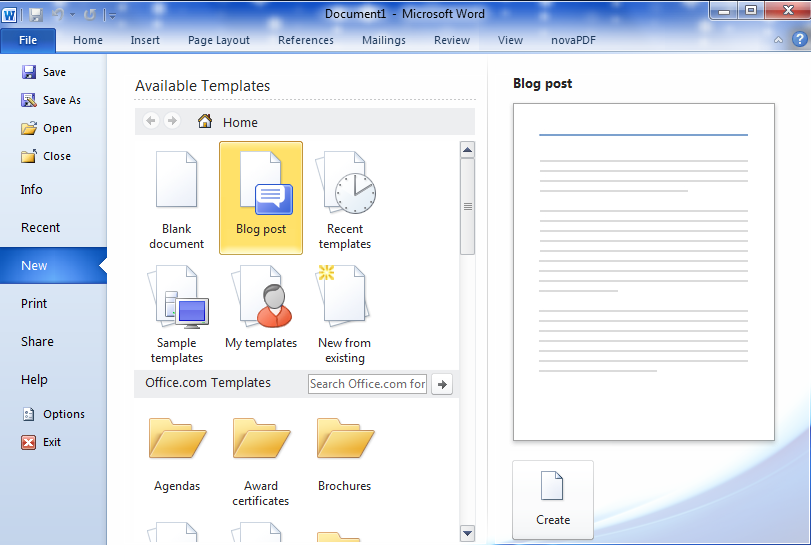
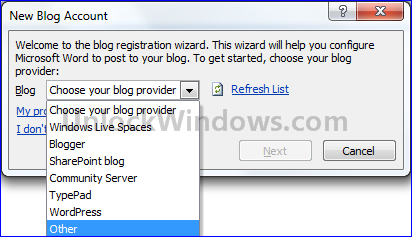
Office 2010 came up with lots of new enhancements and features which helps us in saving lot of time. In Word 2010 we can't only use it as a tool to create and organize our documents but as well we can use it post contents to our blog to various blog provider service like Blogger, Windows Live Spaces, Wordpress, and Community Server etc. Just follow the simple steps and your post will be directly blogged from Microsoft Word 2010. The steps to be followed are as:
- Create a new document as Blog Post by selecting it from File > New menu.
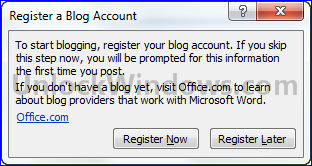
- Register your Blog Account either now or later at the time of publishing the post.
- In case of Registering you have to choose the blog provider from the list given as here I'm selecting Blogger as my blog provider.
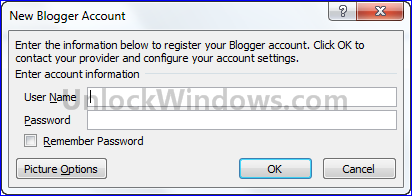
- Now provide the concerned User Name and Password for the blog provider of yours.
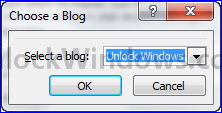
- Now choose the blog for which you want to do posting in case you have more than one blog associated to that account as here I'm having. So I choose my default blog as UnlockWindows.
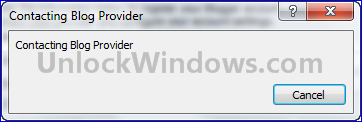
- Now it will contact to your blog provider to confirm the information you provided for registering your account.
- Now click on the Publish or choose Publish as draft in case you want to schedule your blog post to some other time. That's all about blog post via Word 2010.

Share by saving a Word document to SkyDrive in Word 2010 directly.
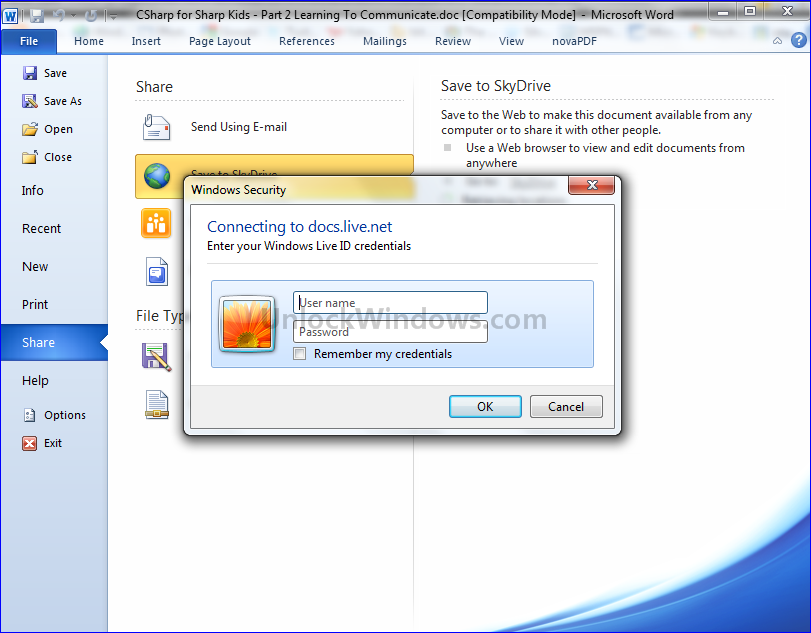
In Word 2010 there is a direct option to share and save any word file to SkyDrive directly simply by configuring your Windows Live ID. To Save your any doc file to SkyDrive follow the steps given below one by one and get your docment saved on your account directly from your desktop:
1. Open any Word document which you want to save to skydrive.

2.Click on File menu and then select Save to SkyDrive.
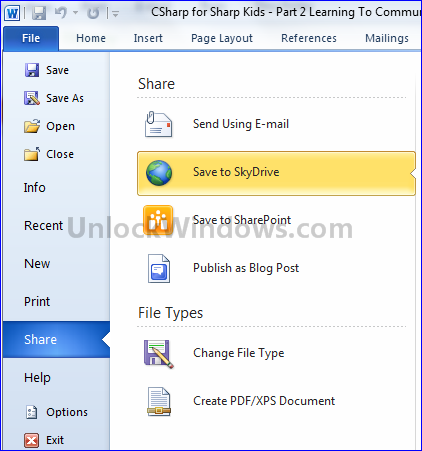
3. In the right panel th SkyDrive login page will start retrieving. As the page retrieves it will prompt you for Login credentials of your Windows Live ID. Just give your ID and Password and login.
4. As you get login you will see your folders already present on your SkyDrive. Now you can save the document file to that folders or you can create a new folder and then click on SaveAs.
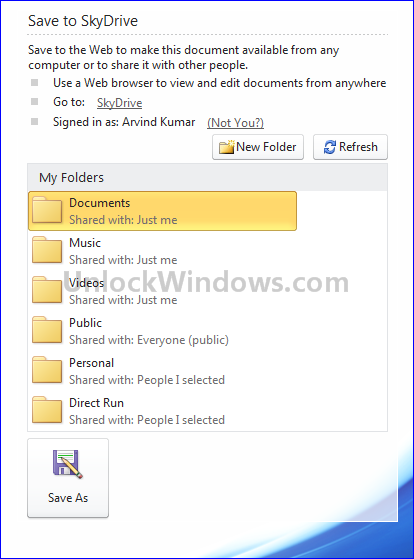
Now you can share and use your documents from anywhere in the world directly from your desktop via Office 2010.
;) Happy Windows Computing !!!
How much will Office 2010 cost to a user?
Recently Microsoft touched a milestone of record downloads of Office 2010 Beta by crossing over 2 millions of trail copy download of it. And now they unveiled the retail pricing of Office 2010.
We will be having four version of taste of Microsoft Office 2010 so as to make it easier to opt for one which is best for us. The fur versions of Microsoft Office 2010 are- Office Home and Business, Office Professional, Office Home and Student, and Office Professional Academic. Below is a chart that outlines the features and pricing for each version:
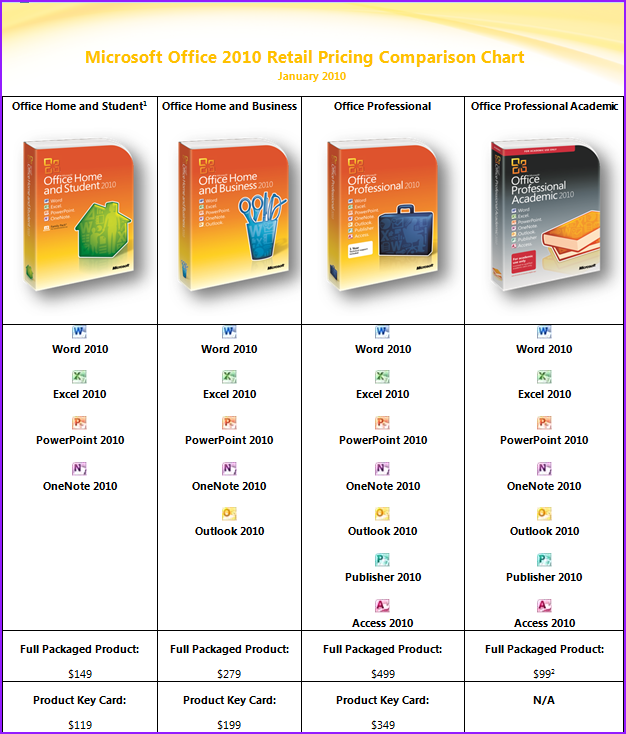
- Office Home and Student boxed product is available in a Family Pack, allowing usage on three PCs in one house.
- Purchase rights for Office Home and Business, Office Professional, and Office Professional Academic boxed product allow for usage on two of your PCs.
- The Product Key Card is valid for a single installation of the product.
To download the above detailed guide to each edition click here.
Office 2010 Beta at downloads at record breaking rate

With the new year celebration the Microsoft Office team is motivated more than ever by what we’re hearing about customers’ experiences with Office 2010. Microsoft Office's General Manager Rachel Bondi said that users have downloaded more than 2 million trial copies of Office 2010 in just seen weeks with a rate of 40,000 downloads per day. He said that "The Office 2010 beta is generating record interest and use, surpassing the previous Office 2007 beta download rate". And the download rate has increased from prevous version of Office.
Most importantly, 9 out of 10 beta users feel that the Office 2010 beta is an improvement over their current productivity suite.
Most importantly, 9 out of 10 beta users feel that the Office 2010 beta is an improvement over their current productivity suite.
So Microsoft's goal is now to make Office 2010 the best rpoductivity suite ever, and making it easier for everyone to try, buy and use Office.
Happy Office Computing !!!
Happy Office Computing !!!
How To: Office 2010 Beta Activation
After you complete the Installation of Microsoft Office 2010 Beta you will be prompted that your product's activation is failed and you need to activate the product. So here are the simple steps incuded in the activation procedure of the product:

In the Title Bar it is reflected that the product activation failed, and its neccessary to activate the product.
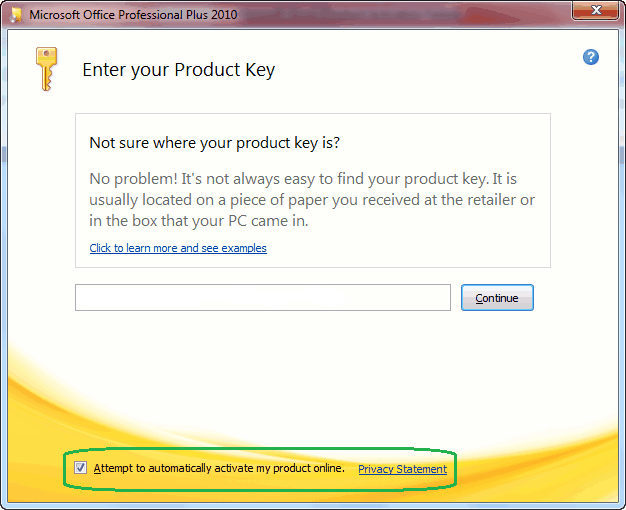
Enter your product key which you get at the time of downloading the product.
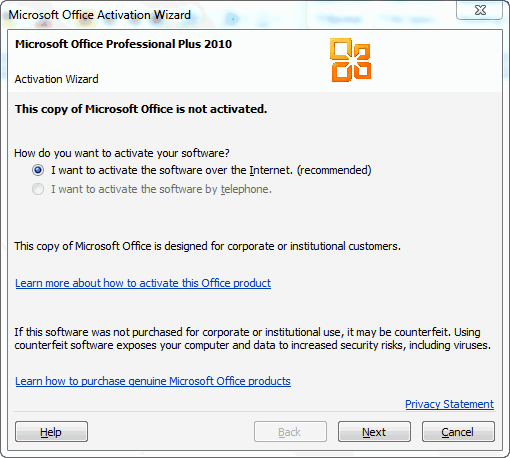
Click on the Next button as The product activation will begin over internet.
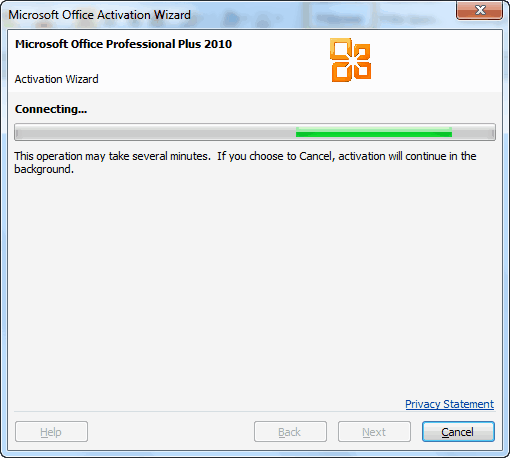
Activation Progress of the product over the internet.
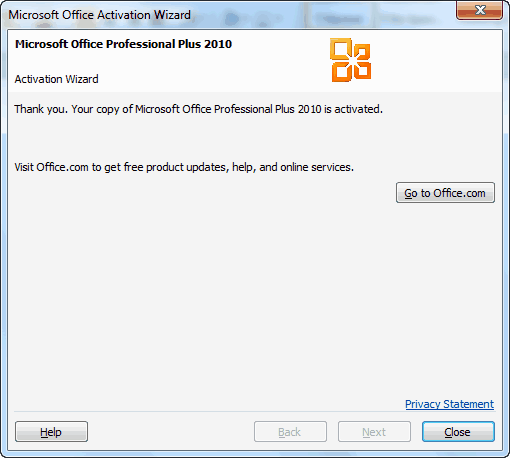
After the activation get completed, a thanks to the user for activating the product. Now your Microsoft Office 2010 Beta is genuine and activated successfully.
In the Title Bar it is reflected that the product activation failed, and its neccessary to activate the product.
Enter your product key which you get at the time of downloading the product.
Click on the Next button as The product activation will begin over internet.
Activation Progress of the product over the internet.
After the activation get completed, a thanks to the user for activating the product. Now your Microsoft Office 2010 Beta is genuine and activated successfully.
Office 2010 Beta Installation ScreenShots.
Recently Microsoft released Office 2010 Beta and I just completed the downloading it. After the download completes, I can't wait more and started the installation of Office. Here are the screenshots of the steps included in the installation:
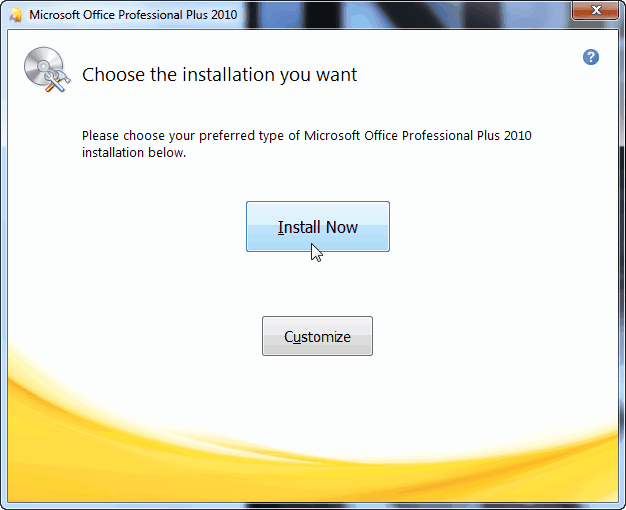
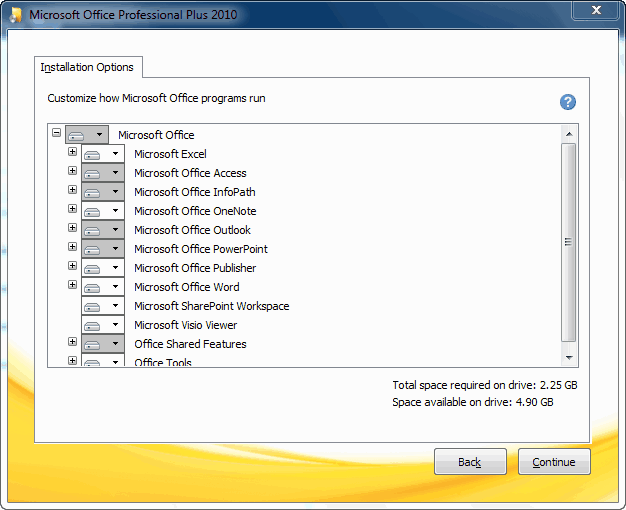
Office 2010 Beta ~ Custom Installation
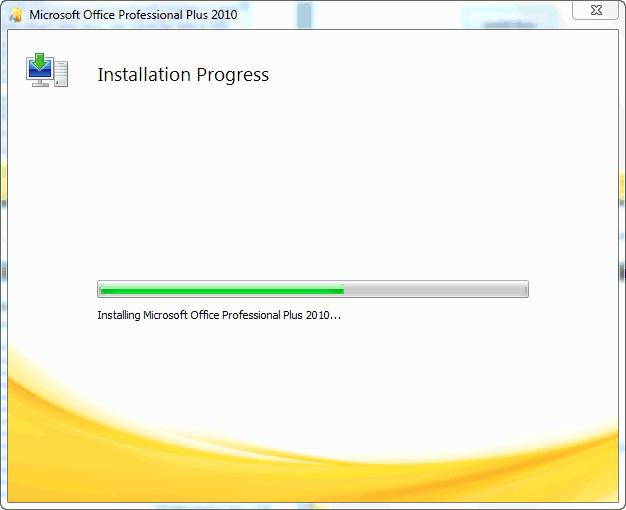
Office 2010 Beta ~ Installation Progress
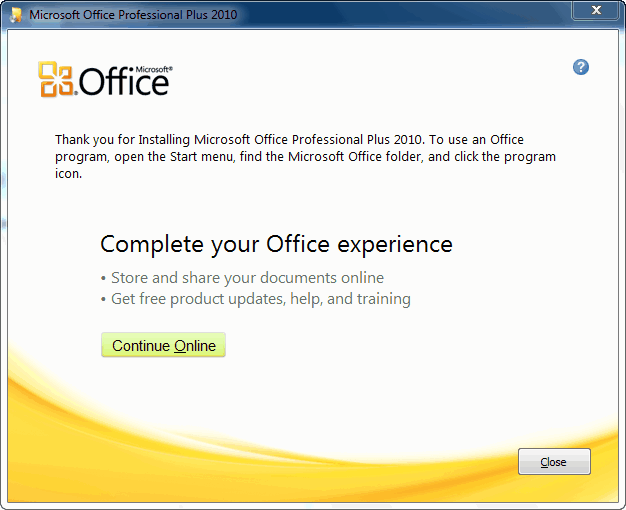
Office 2010 Beta ~ Installtion Complete
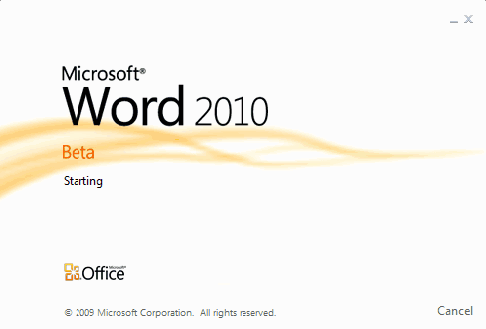
Office 2010 Beta ~ Splash Screen
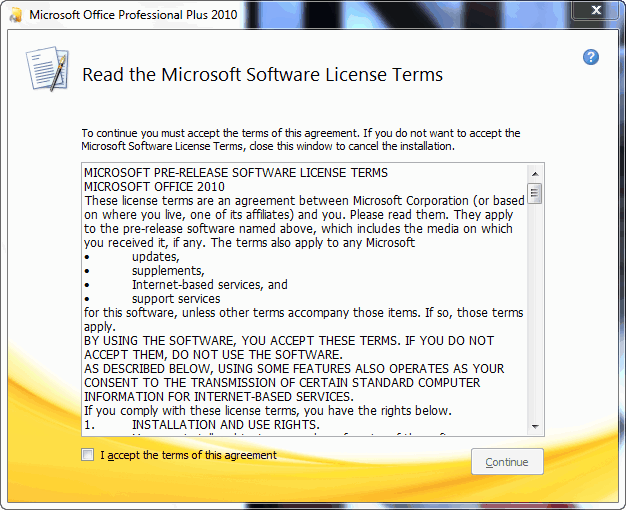
Office 2010 Beta ~EULA
Office 2010 Beta ~ Tpical Installation
Office 2010 Beta ~ Custom Installation
Office 2010 Beta ~ Installation Progress
Office 2010 Beta ~ Installtion Complete
Office 2010 Beta ~ Splash Screen
Download: Microsoft Office 2010 Beta publicly available.
Recenlty Microsoft Office 2010 Beta was made available to MSDN and TechNet Subscribers and now its released to public download.
Kurt DelBene
senior vice president of the Office Business Productivity Group, Microsoft said
"Office 2010 is where you want it, when you need it. "Till now many of us were using the Office 2010 Technical Preview and now the wit is over and Beta is ready for testing. But before you go for the Beta installation first of all make sure that you have uninstalled the previous versions of it.
Here's is what you need to know:
This is pre-release software, so please read the following to get an idea of the risks and key things you need to know before you try the Office Professional Plus 2010 Beta.
Protect your PC and data
Be sure to back up your data and please don’t test Office Professional Plus 2010 Beta on your primary home or business PC.
Uninstall any previous versions of Microsoft Office
We highly recommend that previous versions of Microsoft Office be removed from your test machine before installing Office Professional Plus 2010 Beta.
Technical details/updates
Before installing the Beta please read the Release Notes.
Keep up with the news
You can keep up with general technical information and news by participating in the Microsoft Office 2010 Forum (on TechNet) and reading the Microsoft Office 2010 Team Blog.
Keep your PC updated
Be sure to turn on automatic updates in Windows Update in case we publish updates for the Office Professional Plus 2010 Beta. .Microsoft Partners. Learn more about Office Professional Plus 2010 on the Microsoft Partner Portal.
System Requirements:
Internet access Internet access (to download Office Professional Plus 2010 Beta and get updates) .
- 500 MHz 32-bit or 64-bit processor or higher
- 256 MB of system memory or more 3 GB of available disk space
- 1024x768 or higher resolution monitor
- DVD-R/W Drive
- Windows XP with Service Pack (SP) 3 (32-bit)
- Windows Vista with SP1 (32-bit or 64-bit)
- Windows Server 2003 R2 (32-bit or 64-bit)
- Windows Server 2008 with SP2 (32-bit or 64-bit)
- Windows 7 (32-bit or 64-bit)
Microsoft Office 2010 Beta Available to MSDN and TechNet Subscribers
Microsoft Office 2010 Technical Preview was released in earlier July 2010 and after approximate 4 months, today the official Microsoft Office 2010 BETA has been made available for MSDN and TechNet subscribers.
Microsoft has not released Office 2010 BETA to Microsoft Connect and general public yet. After the official announcement of closing Office 2010 TP, Microsoft stated, “Office 2010 BETA will be made available for public in November 2009”. Therefore we can expect Office 2010 Beta will be available in earlier this week.
Both 32bit and 64bit versions are available, Microsoft is offering Microsoft Office 2010 Professional Plus Beta, that is a complete suite of productivity and database software that will help you save time and stay organized. Powerful contact management features help you manage all customer and prospect information in one place. This product includes Microsoft Word, Excel, PowerPoint, Outlook, OneNote, Publisher and Access.
Visit these following URLs and you can find your site at Applications >> Office 2010
Download Microsoft Office 2010 Beta from MSDN
Download Microsoft Office 2010 Beta from TechNet
Courtesy WindowsValley
Microsoft has not released Office 2010 BETA to Microsoft Connect and general public yet. After the official announcement of closing Office 2010 TP, Microsoft stated, “Office 2010 BETA will be made available for public in November 2009”. Therefore we can expect Office 2010 Beta will be available in earlier this week.
Both 32bit and 64bit versions are available, Microsoft is offering Microsoft Office 2010 Professional Plus Beta, that is a complete suite of productivity and database software that will help you save time and stay organized. Powerful contact management features help you manage all customer and prospect information in one place. This product includes Microsoft Word, Excel, PowerPoint, Outlook, OneNote, Publisher and Access.
Visit these following URLs and you can find your site at Applications >> Office 2010
Download Microsoft Office 2010 Beta from MSDN
Download Microsoft Office 2010 Beta from TechNet
Courtesy WindowsValley
Encrypt docs in Office 2010 using Password protect
We can protect our Word, Excel, PowerPoint docs in Office 2010 using the password encryption so that from next time whenever we try to open that document will prompt us for the password to open the file. In case we know the exact and valid password then only we are able to access the file else not.
The password encryption can be set to the doocument using the Offfice Backstage view. Steps to follow for the one are:
Step 1:
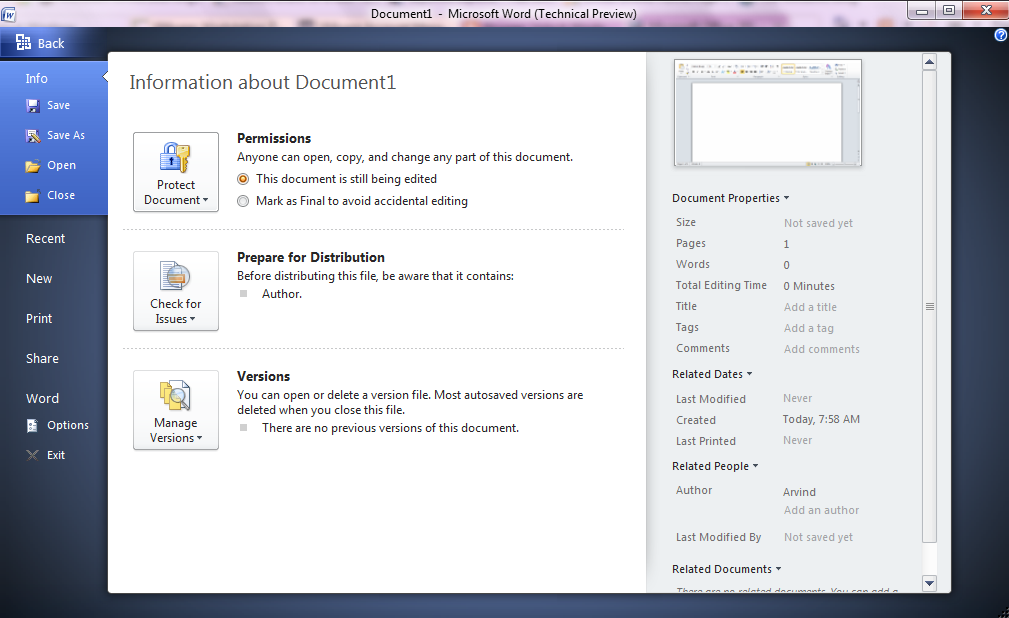
After clicking on the Office button above view comes in front of us.
Step 2:
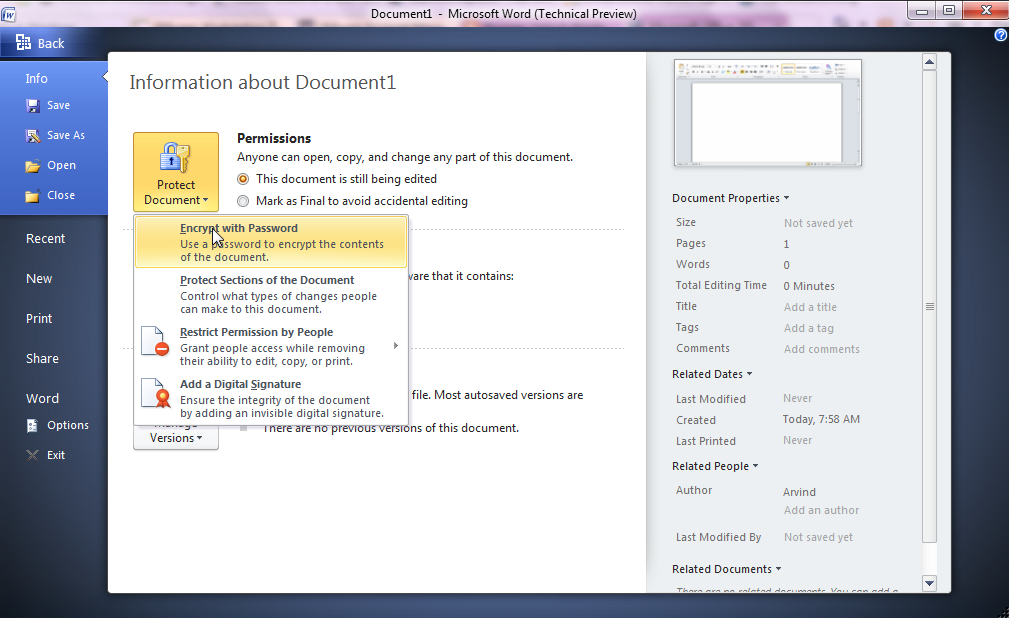
Click on the Protect Document/Workbook/Presentation option and then select "Encrypt with Password".
Step 3:
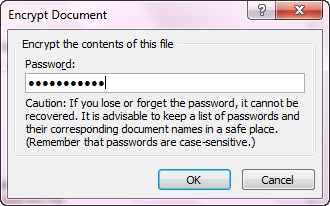
Now set the Password to Encrypt the document. Remember the one you set here.
Step 4:

Reenter the password to confirm it.
Step 5:

Encryption completed and now when we try to open the document which you have encrypted will prompt us for the passsword in order to open the document.
Thats all !!! Happy Windows Computing.
Protected View in Office 2010 keep us secure and safe from harmful contents.
Protected view is a new option added in Office 2010 which keep us safe and secure in case from files originated from Internet as it may contain some sort of harmful ad unacceptable content. If we download any file from Internet adn try to open in let say in Word 2010 then it will prompt us that the particular file is originated from Internet location and disable editing in it. That file is kept in reading mode only and no editing is possible in it untill editing is disabled.

Word 2010 feature named as Protected view will ask us for "Enable Editing" and the editing will be possbible only if we trust the file and give indication to Word 2010 about our trust by clicking on Enable Editing.
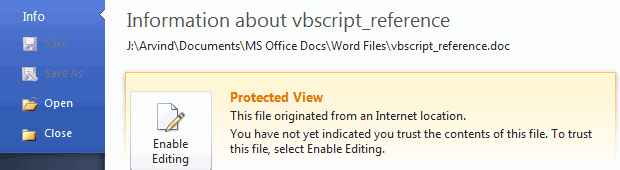
Now if we click on this button "Enable Editing" then we are able to edit the file other wise not. So such features keeps us secure by disableing editing option in the file in case having any malicious activity or Internet originated.
Word 2010 feature named as Protected view will ask us for "Enable Editing" and the editing will be possbible only if we trust the file and give indication to Word 2010 about our trust by clicking on Enable Editing.
Now if we click on this button "Enable Editing" then we are able to edit the file other wise not. So such features keeps us secure by disableing editing option in the file in case having any malicious activity or Internet originated.
New view of Live Preview of Paste Options in Office 2010
There is a little bit of change in Paste Options of Office 2010 from its previous version Office 2007. Live preview with images of options is added and Paste options is also present in right click options in it. When any text is copied from other place then in Word 2010 there will be a prompt asking about the paste options to be opted while pasting the text. Here we can choose whether we want simple text or keep source formatting or match destination formatting.
We can see the live preview by hovering over respecting option that how it will look after pasting the content over there and then we can choose one of it.
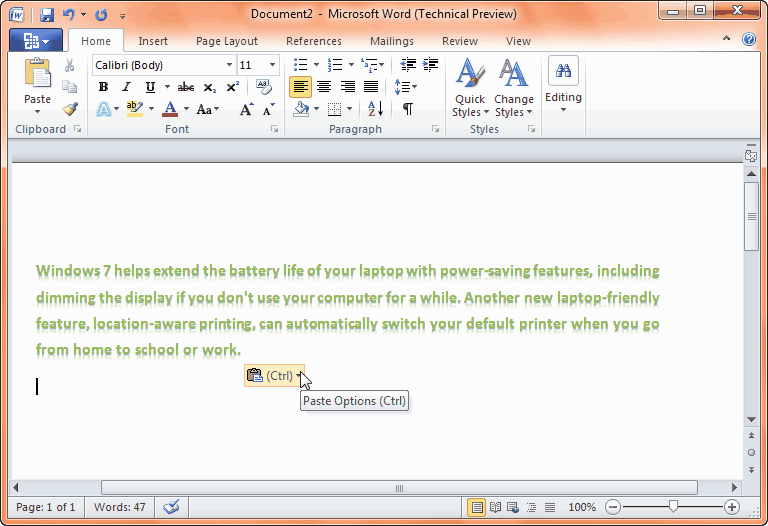
Paste Options comes at the end of text pasted. Shortcut for enabling it is CTRL.

Paste Options for Keep Source formatting. Shortcut for it is CTRL + K.
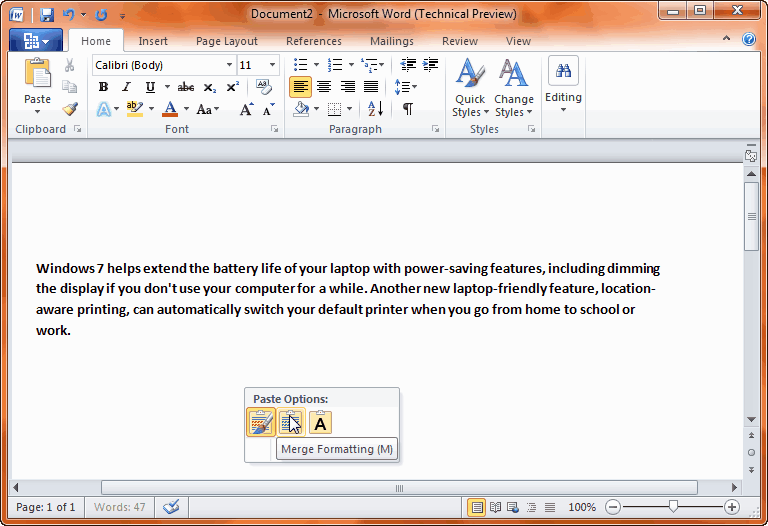
Paste Options for Merge formatting. Shortcut for it is CTRL + M.

Paste Options for Keep Text Only. Shortcut for it is CTRL + T.
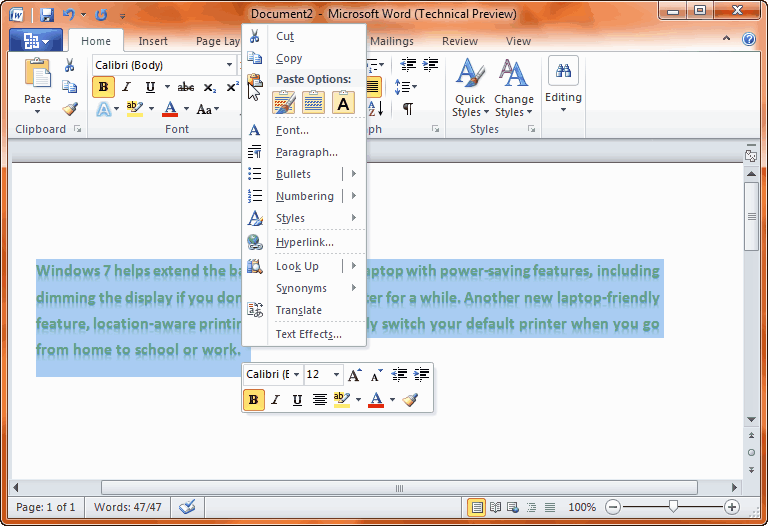
Paste Options for enabling Paste Options in Right Click.
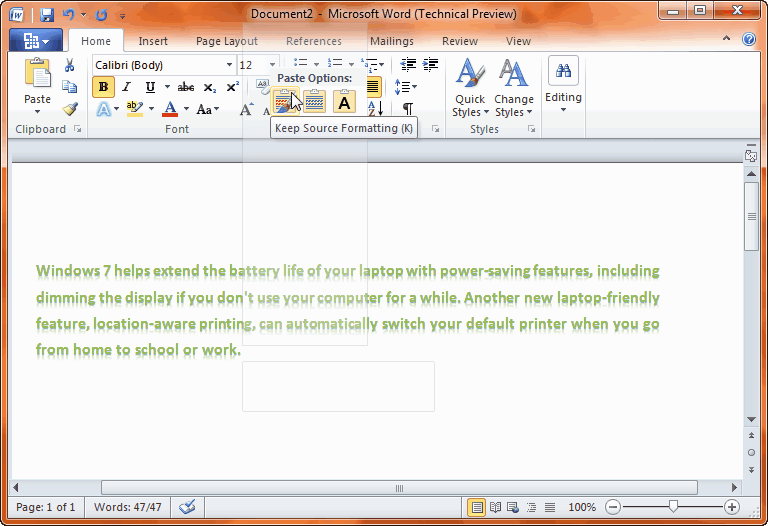
Live preview of text when mouse hovers over one of the options.
We can see the live preview by hovering over respecting option that how it will look after pasting the content over there and then we can choose one of it.
Paste Options comes at the end of text pasted. Shortcut for enabling it is CTRL.
Paste Options for Keep Source formatting. Shortcut for it is CTRL + K.
Paste Options for Merge formatting. Shortcut for it is CTRL + M.
Paste Options for Keep Text Only. Shortcut for it is CTRL + T.
Paste Options for enabling Paste Options in Right Click.
Live preview of text when mouse hovers over one of the options.
Snapshots of Installation of Office 2010.
I'm very excited to use Office 2010 Technical Preview after a long time while it was launnched. I got it via Connect now a days and just finished its installation. so I'm sharing the screenshots of Office 2010. Below the snaps are given step by step.
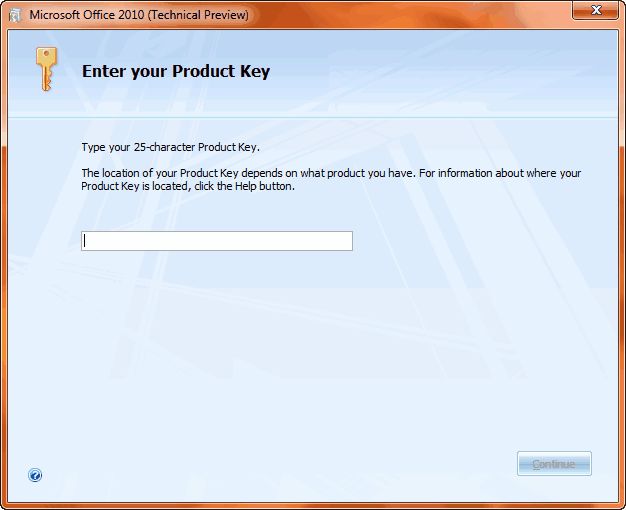
Enter a valid Product Key to start the installation.
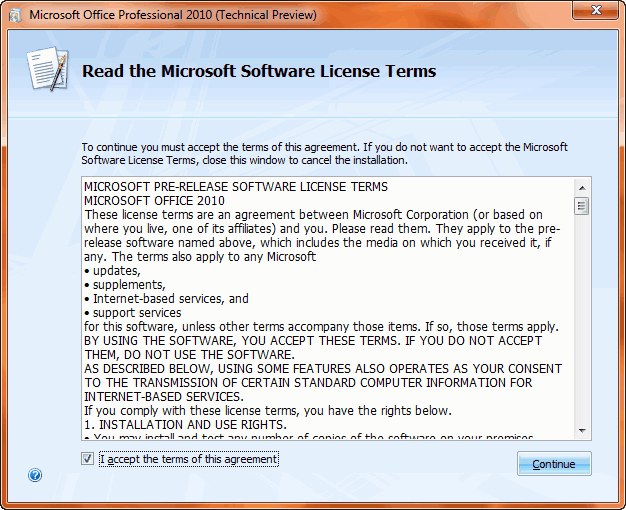
Accept the licensing terms.

Click on Install Now to proceed.
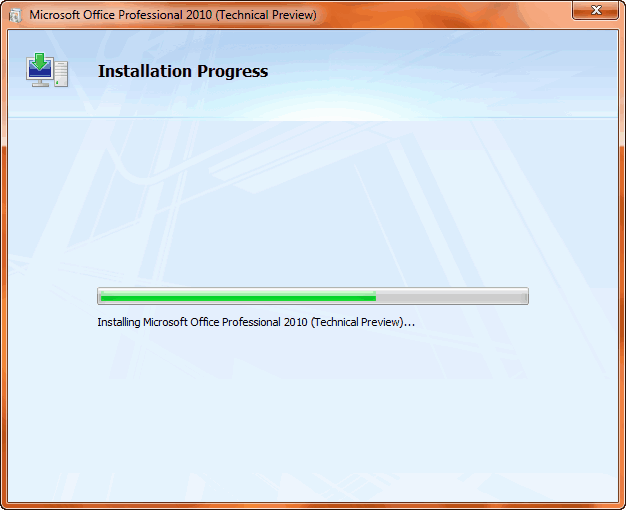
Installation progresses.
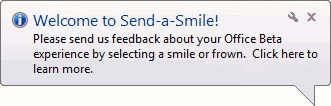
Send feedback by clicking on Smile or Frown face Icon.
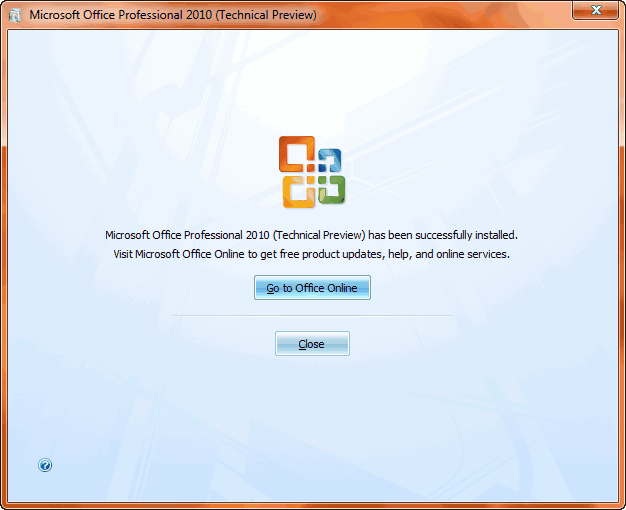
Insallation finished. Now its ready to use.
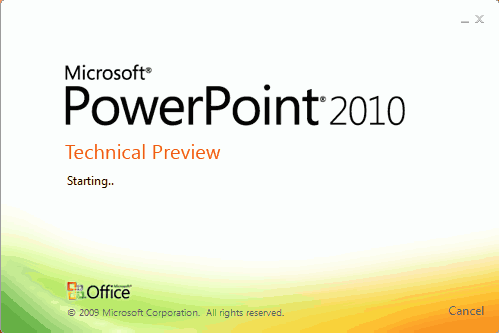
Very impressive, ultimate, and wonderful Splash screen with Min and Close button with a Cancel button too. It's just eye catching Splash.

Look of Word 2010. To enjoy its features install it. Coming soon with its new features, exploring now. Till enjoy Windows Happy Computing.
Enter a valid Product Key to start the installation.
Accept the licensing terms.
Click on Install Now to proceed.
Installation progresses.
Send feedback by clicking on Smile or Frown face Icon.
Insallation finished. Now its ready to use.
Very impressive, ultimate, and wonderful Splash screen with Min and Close button with a Cancel button too. It's just eye catching Splash.
Look of Word 2010. To enjoy its features install it. Coming soon with its new features, exploring now. Till enjoy Windows Happy Computing.
Subscribe to:
Posts (Atom)
Buy Quick Heal at Cheap Price


Friends




Link to us

BlogAdda

About Me

- Arvind Kumar
- I'm Arvind Kumar from India, B.Tech, now working in a MNC. I love to use Microsoft Products and learn from that. Bill Gates is my ideal person.
